
How to Fix Bad Hands and Distorted Faces in Stable Diffusion (2026 Ultimate Guide)
Written by: Promptsera Team – Experts in AI Prompt Engineering
Read Time: 7 minutes
If you have spent any time generating AI art, you know the frustration: you craft the perfect prompt, the lighting is cinematic, the composition is flawless, and then you look at the subject’s hands… and they have seven melting fingers.
Despite the massive leaps forward with models like SDXL, Pony Diffusion V6, and Stable Diffusion 3, generating anatomically correct hands and perfectly symmetrical faces remains one of the biggest challenges in AI image generation.
In this comprehensive 2026 guide, we will walk you through the exact workflows professional AI artists use to banish deformed limbs and distorted faces forever.
📑 Table of Contents
- Why Does AI Struggle with Hands and Faces?
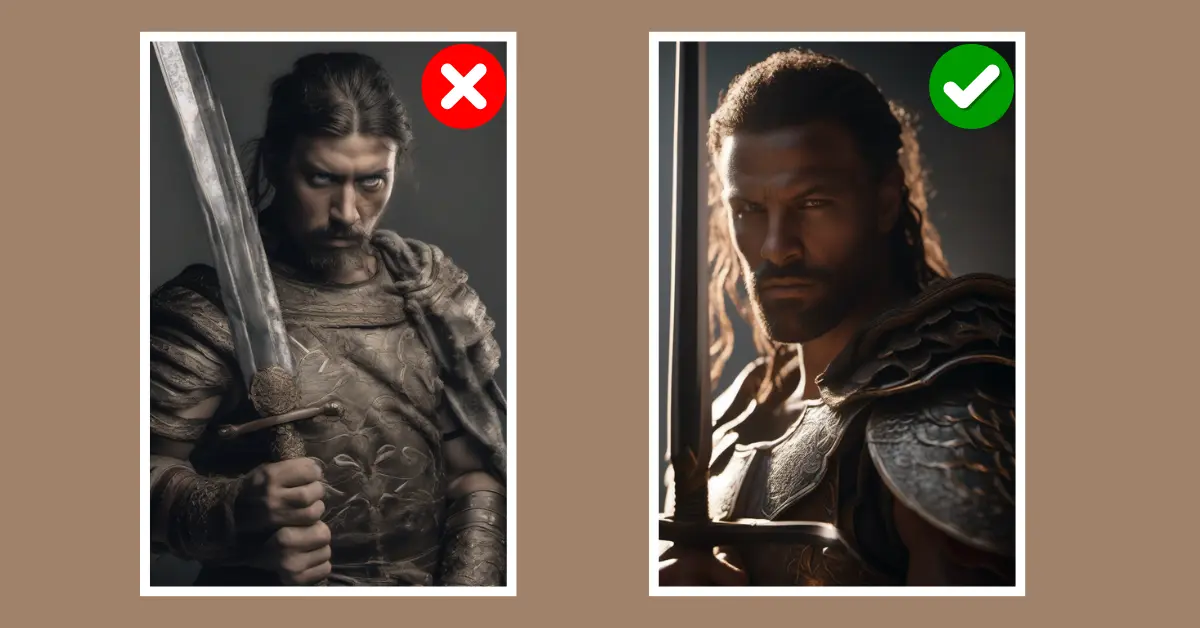
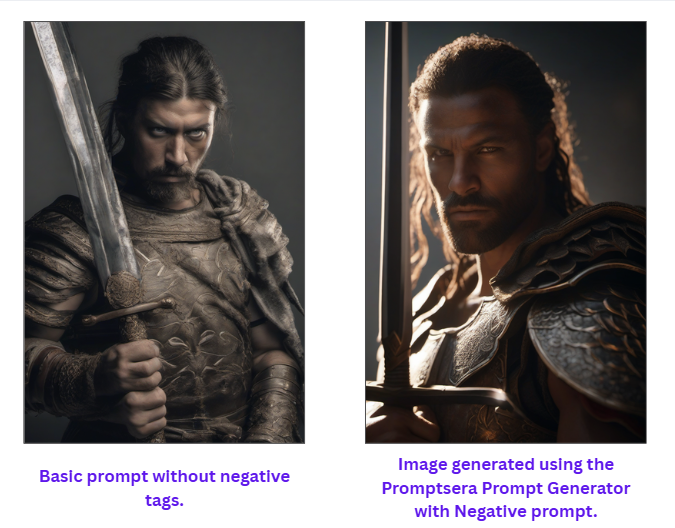
- Step 1: Optimize Your Negative Prompts (The Foundation)
- Step 2: Use “ADetailer” for Automatic Face & Hand Fixing
- Step 3: Manual Inpainting (For Stubborn Artifacts)
- Step 4: Leverage ControlNet & Hand Refiner Models
- Step 5: Use Textual Inversion Embeddings
- Summary & Best Practices
Why Does AI Struggle with Hands and Faces?
Before we fix the problem, it helps to understand why it happens. Large Language Models (LLMs) and Diffusion models do not understand 3D geometry or human anatomy. They understand pixel patterns.
A hand is an incredibly complex mechanical structure. Depending on the angle, a hand might show two, three, or five fingers. They fold, overlap, and hold objects. Because the training data contains millions of images of hands in entirely different positions, the AI often “hallucinates” and blends multiple angles together, resulting in the dreaded “spaghetti fingers.”
Faces, particularly in wide shots or busy backgrounds, suffer from a lack of pixel density. If a face only takes up 30×30 pixels in a 1024×1024 image, the AI simply doesn’t have enough “room” to draw eyes, a nose, and a mouth accurately.
Here is how we fix it, from the easiest method to the most advanced.
Step 1: Optimize Your Negative Prompts (The Foundation)
The first line of defense against bad anatomy is your negative prompt. However, the strategy for 2026 has changed depending on which model architecture you are using.
For Stable Diffusion 1.5 & Anime Models
SD 1.5 models rely heavily on extensive negative prompts. You must explicitly tell the model what to avoid.
Copy and paste this universal anatomy-fixer:
(worst quality, low quality:1.4), bad anatomy, bad hands, missing fingers, extra digit, fewer digits, fused fingers, mutated hands, poorly drawn face, asymmetric eyes, deformed.
For SDXL and Juggernaut Models
SDXL is much smarter. If you overload an SDXL negative prompt with 50 words about bad hands, it will actually confuse the model and degrade the overall image quality. Keep it minimal:
bad anatomy, poorly drawn hands, text, watermark, deformed, plastic skin.
💡 Pro Tip: Don’t want to type this out every time? Use our free Stable Diffusion Prompt Generator. It automatically injects the correct, model-specific negative embeddings into your prompt with one click, saving you hours of trial and error.
Step 2: Use “ADetailer” for Automatic Face & Hand Fixing
If you are using Automatic1111 or WebUI Forge, the absolute best tool you can install in 2026 is ADetailer (After Detailer).
ADetailer acts as an automatic post-processing script. After your initial image is generated, ADetailer uses a YOLO (You Only Look Once) detection model to scan the image for faces and hands. Once it finds them, it automatically masks them and re-generates those specific areas at a higher resolution.
How to use ADetailer:
- Go to the Extensions tab in your WebUI and install adetailer from the available list.
- Restart your UI. You will now see an “ADetailer” dropdown in your generation tab.
- Enable it, and under Model, select face_yolov8n.pt for faces, or hand_yolov8n.pt for hands.
- The Secret Setting: Set the Inpainting Denoising Strength to 0.35 – 0.45. If you set it too high (e.g., 0.8), the new face will look completely disconnected from the original image lighting. If set too low, it won’t fix the distortions.
Step 3: Manual Inpainting (For Stubborn Artifacts)
Sometimes, ADetailer gets confused—especially if hands are holding complex objects like swords or steering wheels. When automation fails, you must use manual Inpainting.
- Send your flawed image to the img2img -> Inpaint tab.
- Use the brush tool to paint over the bad hand. Be sure to mask slightly outside the boundaries of the hand so the AI has room to blend the new skin with the background.
- Change your Positive Prompt to be highly specific to the masked area. (e.g., Change “A warrior in a forest” to “A perfect hand holding a steel sword, five fingers, highly detailed”).
- Set Mask Mode to “Inpaint Masked”.
- Set Inpaint Area to “Only Masked”.
- Generate in batches of 4. Pick the one that looks the most anatomically correct.
Step 4: Leverage ControlNet & Hand Refiner Models
If you are trying to generate a highly specific pose (like someone pointing directly at the camera, or forming a peace sign), standard prompting will almost always fail. You need ControlNet.
ControlNet forces the AI to follow a rigid structural guideline.
The OpenPose Solution
By using the OpenPose preprocessor, you can feed Stable Diffusion a reference photo of a real hand doing the exact pose you want.
- Upload a picture of your own hand to the ControlNet unit.
- Select the openpose_hand preprocessor.
- The AI will extract the “skeleton” of the hand (the knuckles and joints) and generate a new hand over that exact skeleton, guaranteeing 5 fingers and correct proportions.
MeshGraphormer (ComfyUI Advanced)
If you are a ComfyUI user, the MeshGraphormer Hand Refiner node is the current state-of-the-art solution in 2026. It calculates the depth and 3D mesh of a hand and reconstructs it flawlessly, effectively eliminating the “melted candle” look.
Step 5: Use Textual Inversion Embeddings
If you don’t want to install heavy extensions like ControlNet, you can use Embeddings (also known as Textual Inversions). These are tiny files (usually around 10-50kb) trained specifically on what bad hands look like, so the AI knows exactly what to avoid.
The most popular embeddings for SD 1.5 include:
- badhandv4
- EasyNegative
- negative_hand-neg
How to use them: Download the .pt files from Civitai, place them in your embeddings folder, and simply type the file name into your Negative Prompt box. It acts as a shortcut for hundreds of negative anatomical keywords.
Summary & Best Practices
Mastering hands and faces in Stable Diffusion requires a combination of good prompting and the right post-processing tools. To recap your 2026 workflow:
- Start Strong: Always use an optimized prompt. Let our (Free stable diffusion prompt generator) structure your syntax correctly before you even hit generate.
- Automate: Leave ADetailer turned on with face_yolo for almost every generation that includes humans.
- Fix Manually: Use Inpainting for hands holding objects.
- Force the Pose: Use ControlNet OpenPose when you need exact finger placements.
Do not let bad anatomy ruin a masterpiece. By applying these 5 steps, you can confidently generate photorealistic, structurally perfect characters every single time.
About the Author:
The Promptsera Team consists of AI researchers, developers, and digital artists dedicated to making generative AI accessible. We build free tools to help creators bypass the steep learning curve of AI Prompt Engineering.


)